Friday, November 28, 2008

Traditional Technology Media changing

Last week I learned that 2 of my favorite tech magazines, PC Magazine, and PC World have made immense changes, either in their staffing, or in their formats. PC Magazine has announced it will be ending its print edition altogether. The January 2009 edition of PC Mag. will be their last. I have to admit I’m bummed. PC Magazine has been one of favorite magazines for years, from their reviews on hardware, to their “Ask Lloyd” and Ask Neil” advise pages, the magazine has been a great source of technology news for more than 2 decades. The good news is, that they aren’t cutting any staff. According to the PC MAgcast podcast, they’ve been transitioning for the last few years to a digital only model, which will still be available for subscription. I’m looking forward to seeing how this works out, I wish them good luck. http://www.pcmag.com/

I wish I was as enthusiastic about the changes going on at PC World. Apparently in an attempt to remain solvent, they’ve cut several of their highest paid, and in my opinion, best writers. Steve Bass has been writing a fantastic tech advise column for over 14 years and was the first place I’d turn to when a new issue arrived. Steve was let go without much ceremony, last month, without even an opportunity to say goodbye to his loyal readers.  Apparently he will be writing an occasional piece, but his old column is gone. Fortunately for his fans, Steve has started his own newsletter  which is available for email delivery. I encourage everyone to visit his new site at http://www.techbite.com/ and sign up and support this great tech writer.

Friday, November 7, 2008

Windows 7 is coming

For the last two weeks Microsoft has been unveiling their next operating system, Windows 7. Windows 7 will be built on the framework of Windows Vista and will strive to remain compatible with Vista drivers. That said people who avoided Vista for performance reasons may have reason to try Windows 7. One fact that gives hesitant XP users hope is that Steven Sinosky the Vice President running the Windows 7 team uses a Asus eeePC netbook computer as his daily machine running Windows 7. These netbooks are a relatively new class of computer with 7-10 inch screens and running either Intel Atom, or Via, mobile processors, at around 1.5 GHZ. The netbooks are usually shipped with either some form of Linux or Windows XP Home, operating systems largely because of their modest hardware requirements. If Window 7 will run well on a netbook than it should fly on more modern hardware commonly found on most new hardware.

Tuesday, November 4, 2008

More Security Applications

I recently blogged about my favorite security applications, I neglected to mention one of the best antispyware apps available at any cost. Malwarebytes is available in free or paid versions from here http://www.malwarebytes.org/index.php

Malwarebytes is fast, lightweight, and very effective. I use it along with Superantispyware on all my machines as well as a antivirus application to keep me safe online.

Another new recommendation I can make is for Norton Antivirus 2009. Symantec started to greatly improve the performance of their antivirus product with their 2008 version. I was happy after using it for around 8 months of trouble free use, I felt it was vastly superior to the 2004 version I had last used. That said, Norton 2008 still slowed my computer down significantly when it would run a scan. Recently Symantec offered users of Antivirus 2008 a free upgrade to their Norton Antivirus 2009. After the download I was immediately impressed with the improved performance. The scans can either run at full speed or in the background using far fewer system resources, (and taking a lot longer). Either way there seems to be far less of a performance hit, a CPU meter displayed on the side of the display window shows how few resources the new Norton 2009 Antivirus uses.

While I do recommend Norton Antivirus, I still don't recommend the Norton Security suites. I recently tried a version of Norton Internet Security that came preinstalled on a new laptop I bought for my son. It suffered from all the bloat and connectivity issues security suites always do. So I commend Symantec for the new antivirus, but I'll pass on the bloated, all in one suites.

Friday, September 19, 2008

Acronis True Image on Sale

You can get a great deal on Acronis True Image 11 Home by using the coupon code ATIH20 and save 80%. The deal is good until September 30th 2008.
Acronis is a great hard drive imaging and backup program for Windows (Vista compatible).
I use Acronis to image all my installs, I think its the easiest solution out there for baking up or upgrading to a larger/faster hard drive.

Friday, September 12, 2008

Online Security Tools Revisited

Online security is getting more difficult, as the bad guys trying to infect you change their tactics. Some of the older tools that we could rely on to do the job just don't cut it anymore.

Older Programs that haven't kept up:

Spybot Search and destoy

Adaware

Norton 360

McAfee Antivirus/ Security Suite

Trend Micro Antivirus

Any, all in one security suite.

There are many reasons I don't like these various applications anymore. In general security suites, like Norton 360 are bloated, slow down your computer, and aren't that effective. Adaware and Spybot, just don't seem to be able to get rid of anything they find, if they do detect a infection.

Newer Programs that do work:

Superantispyware

Smitfraud Fix

PC Tools Threatfire

PC Doctor Antispyware

Nod 32 Antivirus

Sunbelt Software's Vipre Antivirus

AVG Antivirus (Free)

Avast Antivirus (Free)

Returnil (Virtualizes your sessions) 

WOT (Web of Trust) browser filter

Sysinternals Process Explorer,Autoruns, Rootkit Revealer

Hijack This

This list of programs I feel are, in general, lighter on your computers resources, and more effective at dealing with threats. Returnil isn't really an anti-malware program, but a program that virtualizes your sessions. Any changes to your system are removed when you reboot. Now this can be a pain, when you forgot you were running Returnil and downloaded a song off of Amazon or installed a new program, but its great if your just going to be surfing or if you want to keep a teenager from hosing a computer while they use it. Smit Fraud Fix is a specialized program designed to eliminate the new epidemic of phoney Anti-spyware programs out there today. The Sysinternal applications aren't new at all, but have been updated. They are incredibly useful tools to find out what's going on on your computer. They're fairly complicated looking at first glance, but after a while a user will be able to detect a process that isn't right, or not supposed to be loading on your computer at startup. Hijack This is a great tool to find out what's going on with your computer, its fairly complex to use effectively and should only be attempted by an experienced user.

I still believe that the best defense against malware is to have an ongoing backup program, preferable an automated backup to an external drive as well as periodic data backups to CDs or DVDs. Even better, a third backup to an online provider such as Carbonite or Amazon's S3 service truly keeps you ready for the the really bad infection, that you can't remove or a hardware failure, which can happen at any time.

One last thing their are many other programs out there that are effective a great site I read daily is Bill Mullins blog over on wordpress http://billmullins.wordpress.com/ Bill is a blogging machine! He comes up with an enormous number of useful free and shareware apps, I highly recommend his site.

Stay Safe.

Wednesday, August 13, 2008

Dual Booting Vista and XP


Booting more than one operating system has been possible for a long time with Windows. It's also possible to load several different types of operating systems at once on your computer including Linux, OSX and different versions of Windows. With Windows Vista now being installed on virtually all new Windows PCs these days many people still might have a few legacy programs, or hardware that will only work with XP. This post will show you how to install XP on a computer that came with Vista preinstalled.

There are two solutions available to run XP on a machine with Vista pre-installed. You could run XP inside Vista running some kind of virtualization software, such Virtual Box or using VMware. Virtualization is a good solution for those who would be using the "other" OS infrequently or for non resource intensive applications. But if you want to run the other OS for an extensive period of time or have application that needs the entire resources of the computer for than dual booting is the way to go.

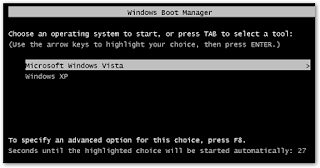
When you are setting up a new machine with nothing on the hard drive dual booting XP and Vista is fairly simple, always load the older OS first, and newer one after. The reason, the older OS XP, doesn't know what Vista is, so if you have XP on a computer, its a simple matter to create a new partition on the hard drive and install Vista. The Vista boot manager will recognize XP as "Older Version Of Windows" and list it along with Vista in a DOS screen at boot up and allow you to choose which OS to load.

When you have the newer OS on first, in this case Vista, it takes a bit more work to get XP to play with Vista in a dual boot environment. First off, you do have to determine if your machine can run XP. I previously blogged about issues some people were having when downgrading Vista machines that were manufactured recently and there were no XP drivers written for them. For this post I assume the computer can run XP, the machine I used to implement the installation was 9 month old Dell Inspiron 1420. Dell had all of the XP drivers on a very well laid out Drivers and Downloads section in their support site.

So starting with a stock Inspiron 1420 running Vista, the first procedure is to create an additional partition on the hard drive. To do this I used the built in Vista Disk Management tool, found by right clicking on Computer>Manage>Disk Management. Right click on you primary C drive and select shrink volume. As long as you have a large amount of free space on your C drive Vista will be able to shrink the volume and the create a new volume. If your hard drive is more than half full, you will need to use a third party tool to create a new partition, or you can boot into your Vista Dvd and shrink the volume using a Diskpart. I prefer to use Acronis Disk Director or the Partition utility found in most Linux Live CDs.

Assuming you have created a new volume on which to install XP, at this point you reboot your computer, hit F12 on Dells to go into the one time boot menu, select boot from Cd/Dvd RW and boot into your XP install disk. One problem you may have is that Windows XP will not recognize your hard drive if its a sata drive so you can do 1 of two things. Before loading XP you can boot into your Bios and find the setting for your hard drive setting. You can select to set your sata drive as ide and XP will recognize an Ide drive and install fine, once the bios has been changed. The other option is to load the sata driver using an internal floppy drive or on to a custom install disk using a program called nlite, but that won't be covered here.

XP will see both partitions and can then be loaded on the new, empty partition. Once you go thought he XP install process XP will be on the E drive. This will be no problem for XP but keep in mind many programs, starting with the XP drivers will want to install on the C drive. Simply change the drive letter on the install path and it should work fine. Now I recommend you install the drivers in generally this order, chipset, audio, graphics, Ethernet,then wireless and the rest.

Now when you restart your machine, you will automatically boot into XP, you need to repair your Vista boot manager so you can use Vista. To do this, you again will need your Vista install Dvd any will do fine, so borrow one if you didn't get one with your machine. So when the "Install Now" prompt comes up, select "Repair Your Computer". The next screen will show you a "System Recovery Options" box, it will only see the Vista install, select Vista you will get another "System Recovery Options" box, "Choose a recovery tool" the first choice is "Startup Repair" click this option it will discover and repair the Vista Boot Manager. Restart your machine, now you will boot into Vista.
Now you will need to get a third party app to amend your boot manager to include XP. There are several out there the 2 I recommend are, Vista Boot Pro from Pronetworks, http://www.vistabootpro.org/ and Easy BCD from Neosmart Technologies,http://neosmart.net/dl.php?id=1

Either of these will be able to modify your Vista Boot Manager to include XP. I used easy BCD and the operation took all of two minutes. Open the application, go to "Add Remove Entries" under "Add an Entry" under Widows use the drop down menu "Windows NT/2k/XP/2k3" change the drive to E (or D or F in some cases) to "Windows XP" click "Add Entry" and click save. Reboot your machine, you will be presented with a screen allowing you to boot into either OS.

Your done! Yes it's much easier to start with XP but that's not always an option. Of course back up an image of your Vista install using Vista's backup and Restore if you have Ultimate or Business, if you have any other version of Vista you need a third party application, my own favorite is Acronis True Image. But definitely make sure your backed up before undertaking anything this intrusive. But you're already backed up right?

Saturday, August 9, 2008

Latest tech Faves

Active Virtual Desktop

One feature of Linux and Leopard that Vista doesn't have that is very useful is multiple virtual desktops. I tried several 3rd party apps. available on the Windows platform. Of these the best I found is a little shareware app appropriately named Active Virtual Desktop. A small 1.25 MB download,  the app works basically the same as virtual desktops on Linux. Numbered tabs in the lower right hand side of your task bar allow you to quickly change between desktops and applications without cluttering up one desktop. Its especially nice for keeping your email, calendar, and Word documents accessible and convenient. Active Virtual Desktop is 20 bucks and can be found here http://www.active-virtual-esktop.com/index.html  a free 15 day trial is available and worth a try.

Acronis True Image

The plethora of backup programs available can muddy the waters a little, sometime its best to go back to an old reliable program you know just works. When you want to create an exact image of your hard drive, including operating system and all installed applications and data Acronis True image will do the trick. I recently used it to move my data on my Lenovo Thinkpad to a larger hard drive. The process took a little over an hour including changing the hard drives into the notebook. Booting into the new hard drive confirmed success, all three operating systems worked fine, all the data was intact. Acronis True Image 11 can be had on Amazon now for 29.99 http://www.amazon.com/Acronis-True-Image-11-Home/dp/B000VLZCEW/ref=pd_bbs_sr_1?ie=UTF8&s=software&qid=1218343390&sr=8-1

Windows Live Calendar

The Windows Live Suite of free applications continues to get better with several recent updates. The Live Calendar while still in beta is every bit as good as Google calendar. What's to say about a calendar, it works great, email reminders, color coded event categories, it's all seamless and works great with your Windows Live mail accounts. I wish it had a built in desktop client similar to the mail client, hopefully that will be coming soon.