Friday, September 12, 2008

Online Security Tools Revisited

Online security is getting more difficult, as the bad guys trying to infect you change their tactics. Some of the older tools that we could rely on to do the job just don't cut it anymore.

Older Programs that haven't kept up:

Spybot Search and destoy

Adaware

Norton 360

McAfee Antivirus/ Security Suite

Trend Micro Antivirus

Any, all in one security suite.

There are many reasons I don't like these various applications anymore. In general security suites, like Norton 360 are bloated, slow down your computer, and aren't that effective. Adaware and Spybot, just don't seem to be able to get rid of anything they find, if they do detect a infection.

Newer Programs that do work:

Superantispyware

Smitfraud Fix

PC Tools Threatfire

PC Doctor Antispyware

Nod 32 Antivirus

Sunbelt Software's Vipre Antivirus

AVG Antivirus (Free)

Avast Antivirus (Free)

Returnil (Virtualizes your sessions) 

WOT (Web of Trust) browser filter

Sysinternals Process Explorer,Autoruns, Rootkit Revealer

Hijack This

This list of programs I feel are, in general, lighter on your computers resources, and more effective at dealing with threats. Returnil isn't really an anti-malware program, but a program that virtualizes your sessions. Any changes to your system are removed when you reboot. Now this can be a pain, when you forgot you were running Returnil and downloaded a song off of Amazon or installed a new program, but its great if your just going to be surfing or if you want to keep a teenager from hosing a computer while they use it. Smit Fraud Fix is a specialized program designed to eliminate the new epidemic of phoney Anti-spyware programs out there today. The Sysinternal applications aren't new at all, but have been updated. They are incredibly useful tools to find out what's going on on your computer. They're fairly complicated looking at first glance, but after a while a user will be able to detect a process that isn't right, or not supposed to be loading on your computer at startup. Hijack This is a great tool to find out what's going on with your computer, its fairly complex to use effectively and should only be attempted by an experienced user.

I still believe that the best defense against malware is to have an ongoing backup program, preferable an automated backup to an external drive as well as periodic data backups to CDs or DVDs. Even better, a third backup to an online provider such as Carbonite or Amazon's S3 service truly keeps you ready for the the really bad infection, that you can't remove or a hardware failure, which can happen at any time.

One last thing their are many other programs out there that are effective a great site I read daily is Bill Mullins blog over on wordpress http://billmullins.wordpress.com/ Bill is a blogging machine! He comes up with an enormous number of useful free and shareware apps, I highly recommend his site.

Stay Safe.

Wednesday, August 13, 2008

Dual Booting Vista and XP


Booting more than one operating system has been possible for a long time with Windows. It's also possible to load several different types of operating systems at once on your computer including Linux, OSX and different versions of Windows. With Windows Vista now being installed on virtually all new Windows PCs these days many people still might have a few legacy programs, or hardware that will only work with XP. This post will show you how to install XP on a computer that came with Vista preinstalled.

There are two solutions available to run XP on a machine with Vista pre-installed. You could run XP inside Vista running some kind of virtualization software, such Virtual Box or using VMware. Virtualization is a good solution for those who would be using the "other" OS infrequently or for non resource intensive applications. But if you want to run the other OS for an extensive period of time or have application that needs the entire resources of the computer for than dual booting is the way to go.

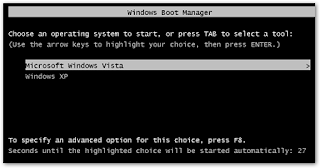
When you are setting up a new machine with nothing on the hard drive dual booting XP and Vista is fairly simple, always load the older OS first, and newer one after. The reason, the older OS XP, doesn't know what Vista is, so if you have XP on a computer, its a simple matter to create a new partition on the hard drive and install Vista. The Vista boot manager will recognize XP as "Older Version Of Windows" and list it along with Vista in a DOS screen at boot up and allow you to choose which OS to load.

When you have the newer OS on first, in this case Vista, it takes a bit more work to get XP to play with Vista in a dual boot environment. First off, you do have to determine if your machine can run XP. I previously blogged about issues some people were having when downgrading Vista machines that were manufactured recently and there were no XP drivers written for them. For this post I assume the computer can run XP, the machine I used to implement the installation was 9 month old Dell Inspiron 1420. Dell had all of the XP drivers on a very well laid out Drivers and Downloads section in their support site.

So starting with a stock Inspiron 1420 running Vista, the first procedure is to create an additional partition on the hard drive. To do this I used the built in Vista Disk Management tool, found by right clicking on Computer>Manage>Disk Management. Right click on you primary C drive and select shrink volume. As long as you have a large amount of free space on your C drive Vista will be able to shrink the volume and the create a new volume. If your hard drive is more than half full, you will need to use a third party tool to create a new partition, or you can boot into your Vista Dvd and shrink the volume using a Diskpart. I prefer to use Acronis Disk Director or the Partition utility found in most Linux Live CDs.

Assuming you have created a new volume on which to install XP, at this point you reboot your computer, hit F12 on Dells to go into the one time boot menu, select boot from Cd/Dvd RW and boot into your XP install disk. One problem you may have is that Windows XP will not recognize your hard drive if its a sata drive so you can do 1 of two things. Before loading XP you can boot into your Bios and find the setting for your hard drive setting. You can select to set your sata drive as ide and XP will recognize an Ide drive and install fine, once the bios has been changed. The other option is to load the sata driver using an internal floppy drive or on to a custom install disk using a program called nlite, but that won't be covered here.

XP will see both partitions and can then be loaded on the new, empty partition. Once you go thought he XP install process XP will be on the E drive. This will be no problem for XP but keep in mind many programs, starting with the XP drivers will want to install on the C drive. Simply change the drive letter on the install path and it should work fine. Now I recommend you install the drivers in generally this order, chipset, audio, graphics, Ethernet,then wireless and the rest.

Now when you restart your machine, you will automatically boot into XP, you need to repair your Vista boot manager so you can use Vista. To do this, you again will need your Vista install Dvd any will do fine, so borrow one if you didn't get one with your machine. So when the "Install Now" prompt comes up, select "Repair Your Computer". The next screen will show you a "System Recovery Options" box, it will only see the Vista install, select Vista you will get another "System Recovery Options" box, "Choose a recovery tool" the first choice is "Startup Repair" click this option it will discover and repair the Vista Boot Manager. Restart your machine, now you will boot into Vista.
Now you will need to get a third party app to amend your boot manager to include XP. There are several out there the 2 I recommend are, Vista Boot Pro from Pronetworks, http://www.vistabootpro.org/ and Easy BCD from Neosmart Technologies,http://neosmart.net/dl.php?id=1

Either of these will be able to modify your Vista Boot Manager to include XP. I used easy BCD and the operation took all of two minutes. Open the application, go to "Add Remove Entries" under "Add an Entry" under Widows use the drop down menu "Windows NT/2k/XP/2k3" change the drive to E (or D or F in some cases) to "Windows XP" click "Add Entry" and click save. Reboot your machine, you will be presented with a screen allowing you to boot into either OS.

Your done! Yes it's much easier to start with XP but that's not always an option. Of course back up an image of your Vista install using Vista's backup and Restore if you have Ultimate or Business, if you have any other version of Vista you need a third party application, my own favorite is Acronis True Image. But definitely make sure your backed up before undertaking anything this intrusive. But you're already backed up right?

Saturday, August 9, 2008

Latest tech Faves

Active Virtual Desktop

One feature of Linux and Leopard that Vista doesn't have that is very useful is multiple virtual desktops. I tried several 3rd party apps. available on the Windows platform. Of these the best I found is a little shareware app appropriately named Active Virtual Desktop. A small 1.25 MB download,  the app works basically the same as virtual desktops on Linux. Numbered tabs in the lower right hand side of your task bar allow you to quickly change between desktops and applications without cluttering up one desktop. Its especially nice for keeping your email, calendar, and Word documents accessible and convenient. Active Virtual Desktop is 20 bucks and can be found here http://www.active-virtual-esktop.com/index.html  a free 15 day trial is available and worth a try.

Acronis True Image

The plethora of backup programs available can muddy the waters a little, sometime its best to go back to an old reliable program you know just works. When you want to create an exact image of your hard drive, including operating system and all installed applications and data Acronis True image will do the trick. I recently used it to move my data on my Lenovo Thinkpad to a larger hard drive. The process took a little over an hour including changing the hard drives into the notebook. Booting into the new hard drive confirmed success, all three operating systems worked fine, all the data was intact. Acronis True Image 11 can be had on Amazon now for 29.99 http://www.amazon.com/Acronis-True-Image-11-Home/dp/B000VLZCEW/ref=pd_bbs_sr_1?ie=UTF8&s=software&qid=1218343390&sr=8-1

Windows Live Calendar

The Windows Live Suite of free applications continues to get better with several recent updates. The Live Calendar while still in beta is every bit as good as Google calendar. What's to say about a calendar, it works great, email reminders, color coded event categories, it's all seamless and works great with your Windows Live mail accounts. I wish it had a built in desktop client similar to the mail client, hopefully that will be coming soon.

Monday, June 30, 2008

Is Security Software a Scam

While researching reports of the various vulnerabilities facing computer users, and the monetary incentive of criminal hackers to keep malware on your machine, I came to the realization that we are wasting our money with the current crop of anti-virus software products. One security expert, Greg Hoglund of HBgary called anti-virus programs snake oil because of their expense and inability to detect and remove the modern forms of malware.

Indeed many programs are totally ineffectual in finding the worst threats out there, especially those containing root-kits. Malware payloads are frequently written by several different teams of highly paid, professional software developers. This new form of business, often originates in the eastern European Countries were development and sales of these products is totally legal. Furthermore these "companies" often net profits in the hundreds of millions of dollars so the incentive to keep your machines and networks vulnerable is very high. Although the home user is at risk and is frequently assisting the malware purveyors unknowingly the ultimate target of many of these enterprises is big business. The theft of intellectual property and proprietary information is the real target. The losses from these attacks are staggering, and are measured in the tens of billions of dollars every year.

So what can the home computer user do if antivirus software is ineffectual and the threats are so serious? Several basic fundamentals are necessary these days for safe computing, regardless of whether you are running Windows XP or Vista, Mac or PC. The first and foremost is never operate online as administrator, this is far more important than running antivirus software. This is much easier to do when using a Mac or running Vista, it can be done with XP although it's much more of a hassle. The second thing is to make sure your operating system is up to date, both Windows and Macs have built in software updating built into their operating systems. Safe online behavior is a must, never clicking links or opening attachments in email or downloading pirated music is absolutely necessary, and if you visit porn sites and are running as an administrator you're infected, no doubt about it.

So should you dump your antivirus? Only if you are extremely careful online, and with your computing habits in general? Even then, running an online scan from one of the many security vendors out there will make you feel a little more protected. In reality most people should run some form of antivirus to protect them from the less serious threats out there. All users should also keep an up-to-date, complete backup of all their important data and programs. If a computer gets infected these days it's virtually impossible to trust your computer again until you do a clean reformat, reinstall of your operating system, programs, and data.

Saturday, June 28, 2008

Living with Firefox 3

The much ballyhooed final release of The Mozilla Foundation’s browser, Firefox has finally  happened. Mozilla generated a fair amount of buzz with a highly publicized Firefox Download day, where they wanted to break all records for downloads in a 24 hour period. The publicity worked, and over 8 million people downloaded Firefox on June 17th.  For many people including myself Firefox has been our primary browser now for several years. The last version of Firefox had managed  to gain significant market share on Microsoft’s Internet Explorer. Firefox 3 has been touted as a vast improvement to Firefox 2’s few shortcomings. The memory leak, a very real issue with Firefox 2 has been fixed. In addition Firefox 3 has been touted as significantly faster than any other browser on the market.

I’ve been running Firefox 3 since beta 3 and have been generally very impressed. The new version still doesn’t run all the extensions and add-ons that the previous versions could, but that seems to be changing quickly.

Since downloading the final release, I have a few issues with version 3. First and foremost, it’s been crashing. Not every time and not on every machine, but it seems to hang when first started on several of my computers, it almost seems to want to “warm up” before it will respond quickly. When it works, it works great, it loads pages fast, and is everything its been purported to be. Oddly the most stable version seems to be the 3rd release candidate version downloaded prior to “Download Day” although it must have been the final code, as no updates are available when I check. The issue with crashing, has made me decide to hold off on upgrading my primary desktop which runs Firefox 2 just fine.

To make things interesting I also tried the portable app version of the browser from http://portableapps.com, the portable version is even more buggy. I tried the portable app on both XP and Vista machines and the  browser hangs for several minutes before responding. For portable app fans I recommend the new Opera Browser 9.5 which works great. It was very fast as well as stable and can be found here, http://www.pendriveapps.com/2007/06/10/portable-opera-usb/.

So if you are using Firefox 2 and are happy with it, you may want to wait or download 3 and try it, but don’t delete 2 yet, I think in the near future it will be fine. The Mozilla people do great work and deserve your support, Firefox 3 can be found here, http://www.spreadfirefox.com/en-US/worldrecord/firefox3

Saturday, June 14, 2008

Can You Downgrade to XP?

A lot of people who recently bought new computers are asking this question. I tend to ask why would you want to do that, as I generally think Vista is a big improvement. But many people still want or need to downgrade to XP for some specific hardware or software application that won't play well with Vista.  Or perhaps they are just more comfortable with XP, and anyway it's their buck, so whatever they want, right?

Well maybe, maybe not.  It seems that a number of the new computers, especially notebooks were designed and built after Vista had released. Device drivers for XP were never written for these computers, especially for the video cards. Many people have tried using generic drivers, but you won't get a great result with these generally. So if you might want Windows  XP buy a computer with it pre-installed on it .  Any new computer today, with the exception of these new ultra portable laptops, will run Vista fine if you want to upgrade or dual boot.

Friday, May 30, 2008

The 31 Days of the Dragon continues

I was remiss in not posting about the incredible contest sponsored by HP, and Buzzcorp before but they are in the process of giving away 31 HP Pavilion Dragon HDX Entertainment Notebook PC's. This is an extremely powerful 20 inch notebook PC with a list of specs that would make most hard core gamers smile. A sample of the system specs include Intel Core 2 Extreme Processor, 4 GBs of Ram, 512mb GeForce 8800GTS Video card and an 20.1 inch display. The giveaway also include a boatload of software in addition.
The catch, time is running out the end is June 8th so jump on over to the following sites to enter and maybe win this incredible rig.
Site Contest Starts Winner Announced On
AbsoluteVista.com 2-May 9-May
Ars Technica 3-May 10-May
OSNN.net 4-May 11-May
JKontherun.com 5-May 12-May
Barbs Connected World 6-May 13-May
BostonPocketPC.com 7-May 14-May
The-Gadgeteer.com 8-May 15-May
TheDigitalLifesetyle.com 9-May 16-May
DigitalHomeThoughts.com 10-May 17-May
Windows-now.com 11-May 18-May
WindowsConnected.com 12-May 19-May
Geekstogo.com 13-May 20-May
Bink.nu 14-May 21-May
MediabLab.com 15-May 22-May
Last100.com 16-May 23-May
Digital Inspiration 17-May 24-May
Notebooks.com 18-May 25-May
SlashdotReview.com 19-May 26-May
Neowin.net 20-May 27-May
Geek.com 21-May 28-May
Lockergnome.com 22-May 29-May
Planet x64.com 23-May 30-May
TheGreenButton.com 24-May 31-May
Istartedsomething.com 25-May 1-June
BleepingComputer.com 26-May 2-June
HardwareGeeks.com 27-May 3-June
GeekNewsCentral.com 28-May 4-June
Geekzone.co.nz 29-May 5-June
TheTabletPC.net 30-May 6-June
GearLive.com 31-May 7-June
GottaBeMobile.com 1-June 8-June


Please note many of these sites have already ended their contest, I included the whole list because there are some great sites here and you should check them out.
Good luck.